In a B2B product, the dashboard is the screen people open every day, often first thing. In my experience, if it answers their question, they trust the product; if they have to dig for it, they start keeping a spreadsheet on the side.
This is how I design that screen, with examples from KpiClock, a team management product live with 900+ companies, and the admin panel I designed for Find Your Calm, a booking platform for wellness operators.
What question does each user open the dashboard to answer?
I start every dashboard with one question per role, written down before any layout. The question decides what goes at the top, and everything else follows from it.
On KpiClock the roles are clear: employees track their time, team leads look after a team, admins run the company, and HR handles attendance, rosters and documents. Each of them opens the product for a different reason, so each needs a different first screen.
On Find Your Calm the admin panel has three areas, split by who uses them and when: Operations for the day-to-day, Analysis for owners, and Configuration for setting the business up.
Should every role get its own dashboard?
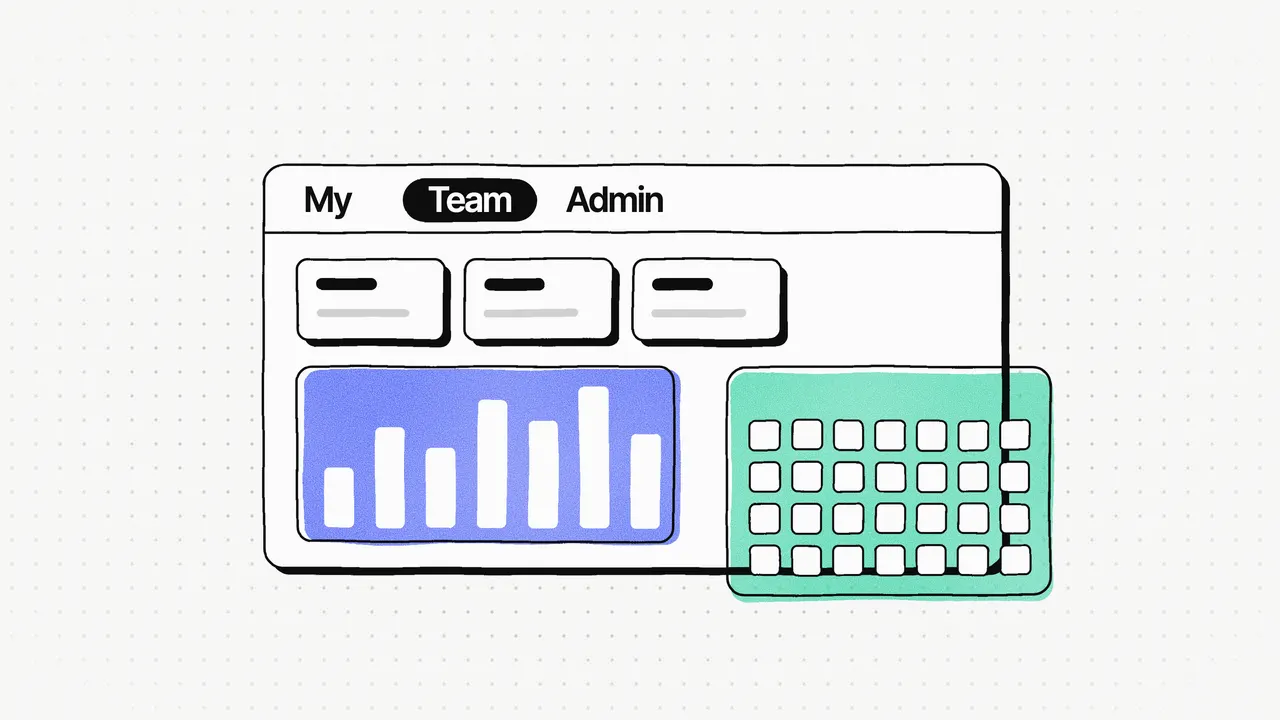
In my experience, yes, once a product has more than one kind of user. KpiClock has three role dashboards: My, Team and Admin. These are the questions I designed them, and the other views, around.
| Role | The daily question | What the screen shows |
|---|---|---|
| Employee (KpiClock) | What am I working on, and how much have I worked today? | The desktop tracker: pick a project and task, start the timer, see time worked today |
| Team lead (KpiClock) | How is my team's time going? | The Team dashboard: time tracked, working patterns through the day, top projects |
| Admin (KpiClock) | Is the company set up and running as it should? | The Admin dashboard, settings and approvals |
| HR (KpiClock) | Who's in, who's off, and what needs approving? | The calendar, and rosters with every approver's status |
| Operator (Find Your Calm) | How is the business doing compared with last month? | Key metrics against the previous 30 days, filtered by location, service type and date range |
| Operator staff (Find Your Calm) | What's happening in the rooms right now? | Live room status: temperature, humidity and movement for each sauna room at a location |
Separate views don't mean separate products. On KpiClock, time tracking and the HR modules use the same components, built on Ant Design 5, so V2 looks and works like V1. The dashboards differ in what they show first; the parts they're built from are shared.
How should a dashboard show time and schedules?
On one calendar. KpiClock's calendar shows shifts, holidays, leave, absences and daily check-in status in one month view, so employees don't check three screens to see one week.
That calendar came with a lesson. If I did it again, I'd design the calendar, the approval workflow and the roster as one shared scheduling foundation from the start. Shifts, leave, holidays and rosters all depend on the same time rules, and designing them as separate modules meant reconciling them later. When you sketch your dashboard, notice how many things on it are really about time, and plan them together.
How do you make status visible?
Show whose turn it is, everywhere something waits on a person.
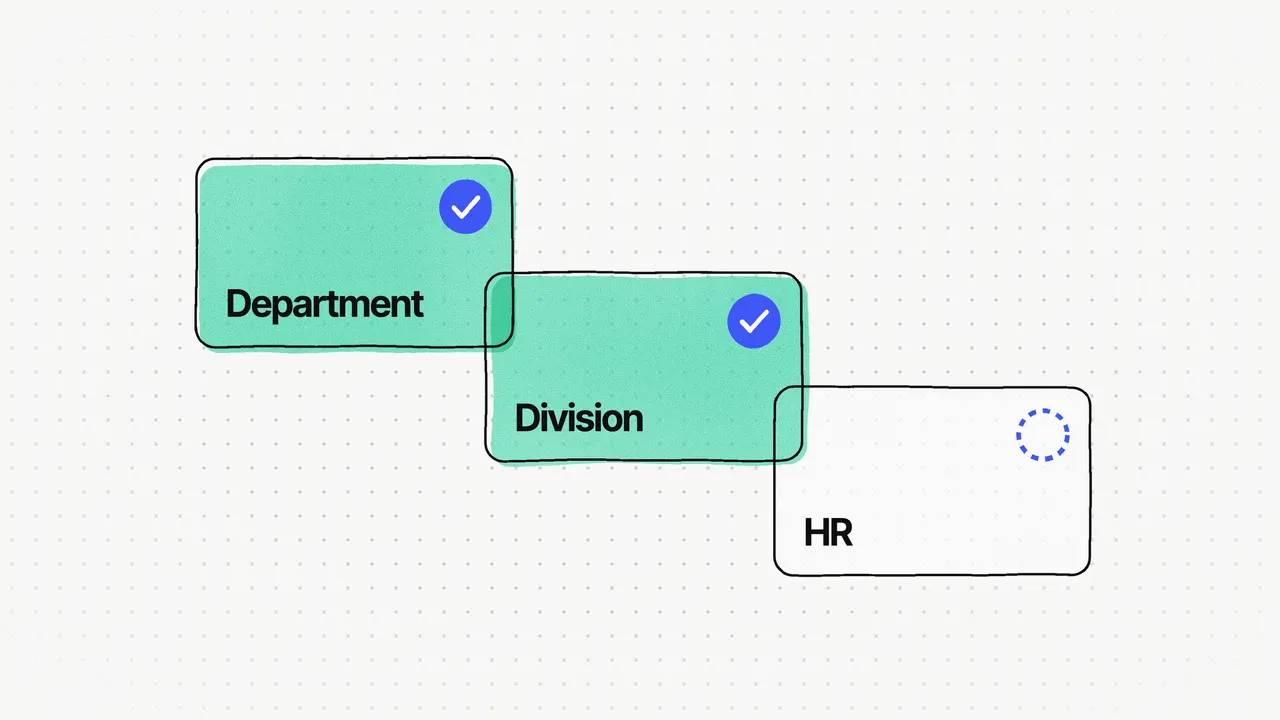
On KpiClock, leave and rosters go through several approvers. The roster approval screen shows every approver's status, and a timeline shows whose turn it is, so nothing waits silently. Each roster slot shows its approval and lock status, and who created and approved it; locked slots can't change after approval, so payroll and attendance stay in step.
The same idea applies on any B2B dashboard: if something is waiting, the screen should say who it's waiting for.
On LeanDeck, an AI proposal tool for agencies, the dashboard does the same for deals. It shows revenue, active proposals, pending agreements and win rate, and a pipeline that runs from sent to viewed, negotiating, agreement sent, signed and invoiced. An agency can see where deals stall, and which leads are reading their proposals most, from how often each proposal was viewed. The dashboard's job there is the same as on KpiClock: show where things stand, and who or what is holding them up. I wrote about approval flows in detail in Designing approval workflows for B2B SaaS that don't lose requests.
What belongs in reports, and what belongs in settings?
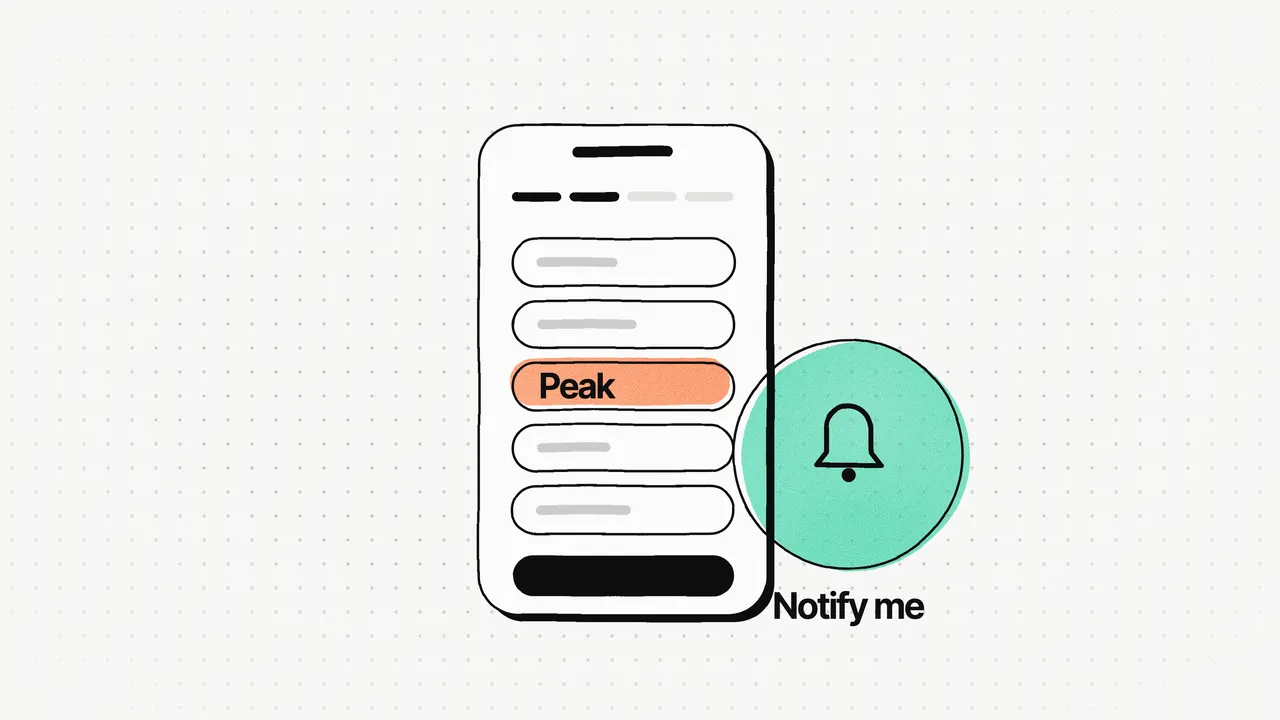
Reports are for questions people take elsewhere. Numbers end up in payroll, finance and team meetings, so reports should export. KpiClock's reports export to CSV, Excel and PDF, and its monthly attendance report shows the attendance rate, late arrivals, overtime and leave, with the month's trend. On Find Your Calm, the bookings report shows volume, occupancy, cancellations and no-shows, with occupancy by day and by hour so operators can see their peak times.
Settings are for things people set once and change rarely. They belong in their own area, out of the daily view. On Find Your Calm, that's the Configuration area, where operators set their own pricing rules, such as charging per extra person, with validity dates, priority and whether rules stack. On KpiClock, settings hold the company, plans and subscription, payments, roles and permissions, and the approval workflow builder.
Keeping the two apart keeps the daily screen calm. The dashboard answers today's question; reports answer next month's; settings are where the business is configured.
If you're building a time-based product like KpiClock, the feature side is in How to build time tracking software.
Frequently asked questions
What should a SaaS dashboard show?
The answer to the question its user opens the product to ask, first. For a team lead on KpiClock that's how the team's time is going; for a sauna operator on Find Your Calm it's how the business is doing against the previous 30 days. Everything else can sit one click away.
Should admins and regular users see the same dashboard?
Usually not. KpiClock has three role dashboards (My, Team and Admin) because an employee, a team lead and an owner ask different questions every day. In my experience, one shared dashboard answers none of them well.
How do you design a dashboard for many users and roles?
List the roles, write down the one question each asks every day, and design a view for each. Then share the parts they have in common, such as the calendar, the reports and the components, so the product still feels like one.
Should dashboard reports be exportable?
For B2B products, yes. People take numbers into payroll, finance and meetings. KpiClock's reports export to CSV, Excel and PDF.